ClickDrift
A Chrome extension that shows where your clicks and browsing time went
ClickDrift is a Chrome extension from NextTrackSystems. Press Start tracking, browse normally, and get a plain summary of your captured clicks, the sites you used, foreground and estimated active time, and tab switches and returns. It reports what it could observe and says what it could not see. It does not judge clicks as wasteful, score productivity or guess why you visited a site: you decide what each site means.
Version 1.1.0 is packaged for Chrome Web Store submission. It is not publicly listed yet, so there is nothing to install from this page.
What it does
You press Start tracking, browse normally and press End. Between those moments ClickDrift counts your page clicks, notes which website was in front of you and for how long, and records how often you switched tabs or came back to where you began. Nothing is recorded before you press Start or outside a running session.
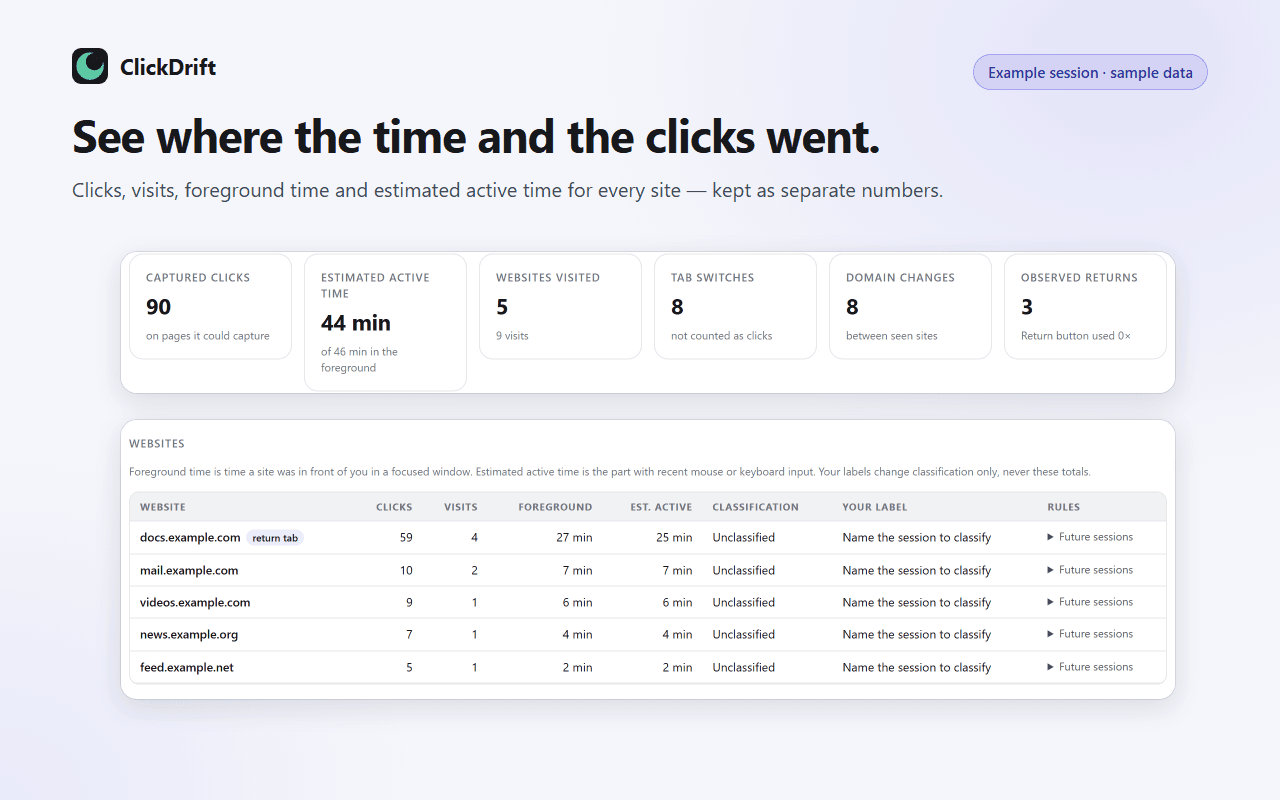
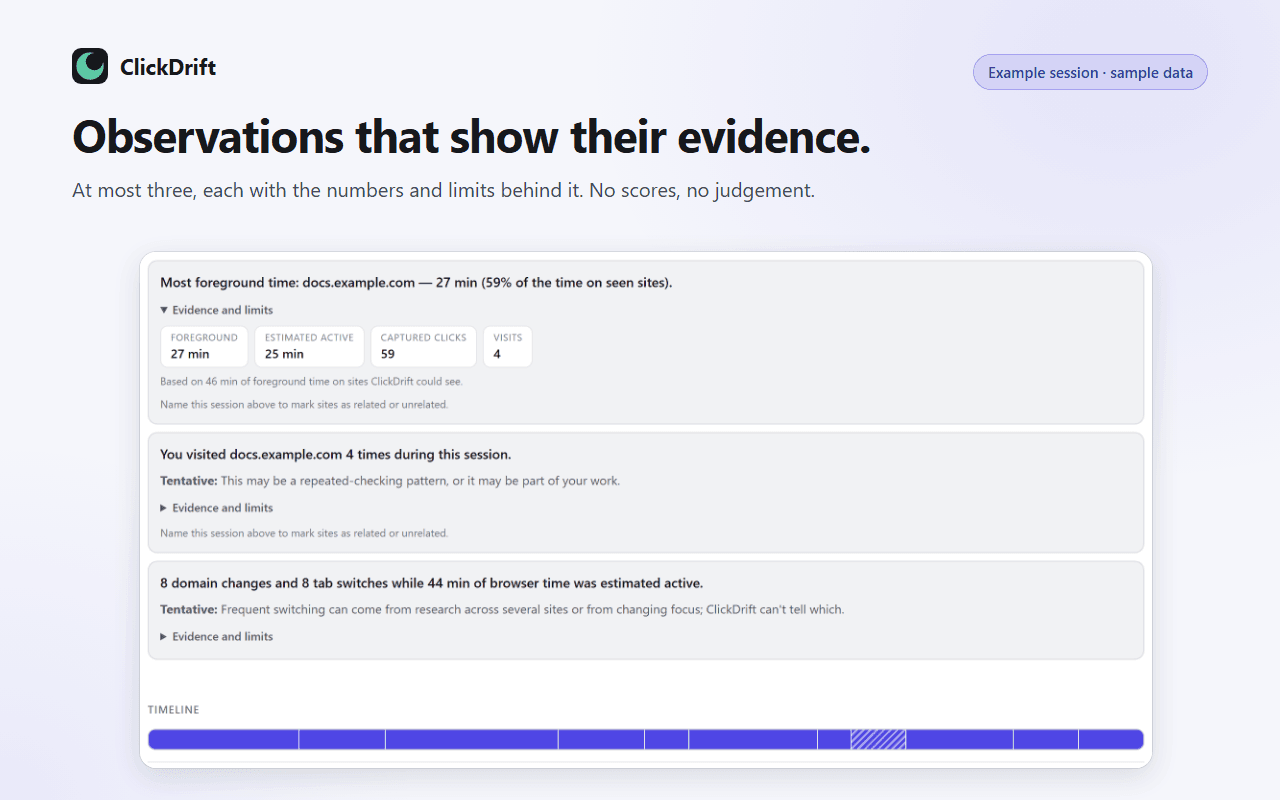
The summary shows a timeline, a table of websites, at most three evidence-backed observations and how much of the session it could actually see. You can mark a site related, unrelated or unsure for that session, and separately save a rule for future ones. Those labels never change the measured totals.
How a session works
- Start tracking from the popup. The tab you are on becomes the starting point and default return tab. A task name is optional; with none, the session is recorded as “Browsing session — task not specified” and nothing is claimed about what you were doing.
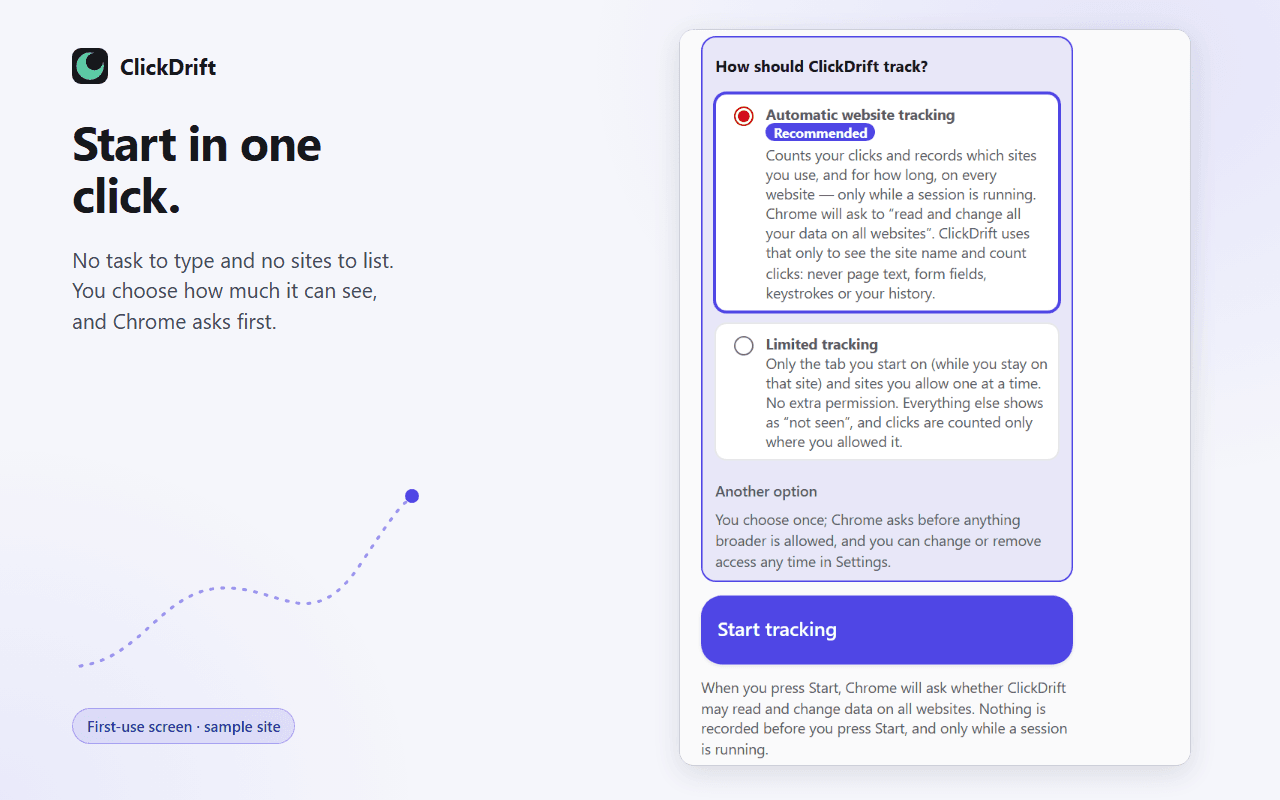
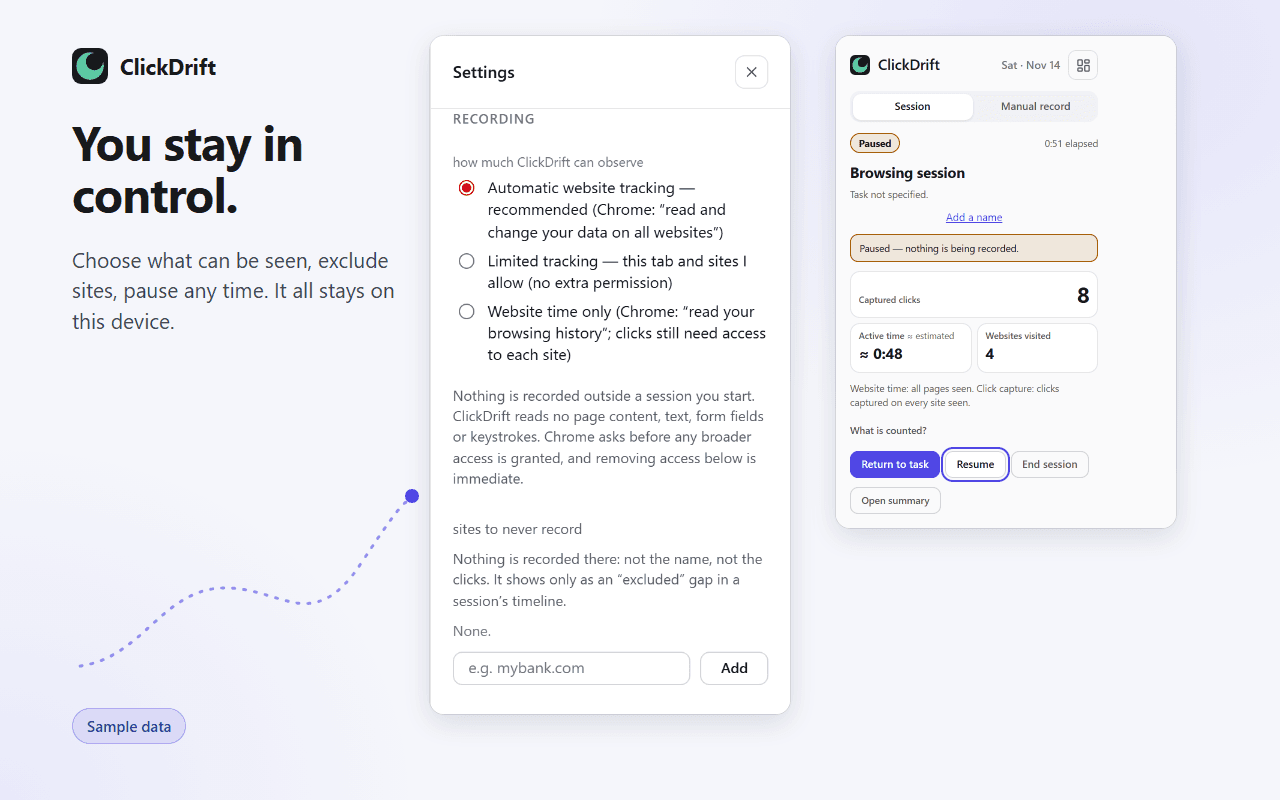
- The first time, you choose how much ClickDrift can observe: Automatic website tracking (recommended), Limited tracking, or website time only. Chrome asks before anything broader than Limited is granted, and you can remove access at any time.
- Browse. The small popup shows captured clicks, estimated active time and websites visited, with Pause, Return and End.
- Review. Open the summary for the timeline, the website table and the recording coverage.
- Optional rules, all off or empty by default: sites you consider distracting (labels and optional reminders only), sites to never record, and neutral reminders after a number of minutes.
- A Manual record tab keeps the original self-reported log, focus timer and daily limit, stored separately from session data.
What it measures, and what it doesn’t
ClickDrift reports separate numbers instead of one score, and defines each one:
- Captured clicks: primary mouse, touch and pen clicks on pages it could see during a running session. Navigation, reloads and tab switches are never counted as clicks.
- Foreground time: time a site’s tab was the active tab of the focused Chrome window.
- Estimated active time: foreground time with keyboard or mouse input in the last 60 seconds. Idle means no input, not proof you stopped reading.
- Visits and returns: a visit needs at least five seconds or a click. An observed return is when the starting tab’s site came back to the front.
- Coverage: website-time coverage and click coverage are reported separately. Anything it could not see is shown as “not seen”, never as zero.
- Not counted: keyboard or assistive-technology activation (browsers report these as ordinary clicks), right-clicks, script-generated clicks, clicks inside embedded frames, the browser toolbar, other apps, restricted pages and incognito windows.
Privacy and permissions by design
Everything is processed and stored on the device. ClickDrift has no account, backend, analytics or remote assets, and its code makes no network requests. That was checked with an audit of the shipped files and by observing network activity during a full session.
In Automatic mode a session can record the name of every website you use while it runs, plus clicks and time. It stores site names only, with no page paths, titles or page text, and it never reads form fields or keystrokes. Sites you exclude are not recorded at all, not even their names.
- Required at install: storage, scripting, alarms, idle and activeTab. No website access is granted at install.
- Optional, requested only through Chrome’s own prompt: access to all sites for Automatic tracking (when you press Start), or the tabs permission for website-time-only mode. Either can be removed in Settings.
- Not requested: history, notifications or webNavigation.
- Retention defaults to 90 days (30 days, 90 days, 1 year or until deleted). You can delete one session or all history, and export your data as JSON.
- Incognito is not supported, and Chrome 120 or later is required.
How it was checked
The 1.1.0 release candidate was verified before packaging with automated suites and with scenarios run in a real, visible Chrome.
- 81 unit tests on a deterministic clock, plus real-browser suites covering the session engine, the popup and dashboard journey, accessibility, performance and privacy, including observation of network traffic.
- Five native-Chrome scenarios with real keystrokes on the unmodified package: the first-run permission flow, a denied permission, one-tab-only sessions, upgrading from version 1.0, and real idle time. All five passed, and one run found and fixed a same-site capture bug.
- Not yet verified: screen readers, macOS and other browsers, OS lock, sleep and wake, deliberate multi-window and other-application focus changes, and the Chrome Web Store review.
Screenshots
Key Features
- One-click start: no task name or list of sites required
- A plain summary of captured clicks, sites, foreground and estimated active time, tab switches and returns
- Honest coverage: anything it could not see is labelled “not seen”, never shown as zero
- You classify sites yourself; it never scores productivity or guesses intent
- Optional rules, all off by default: sites to never record and neutral reminders
- Local-only storage with your choice of retention, per-session deletion and JSON export
Tech Stack
Want Something Like This?
We build production-ready MVPs in 14 days. Let's talk about your project.
Get in Touch